Photography
The photography style for Hyson should encapsulate the personality of Hyson – trustworthy, innovative, collaborative, and passionate.
Subject Matter
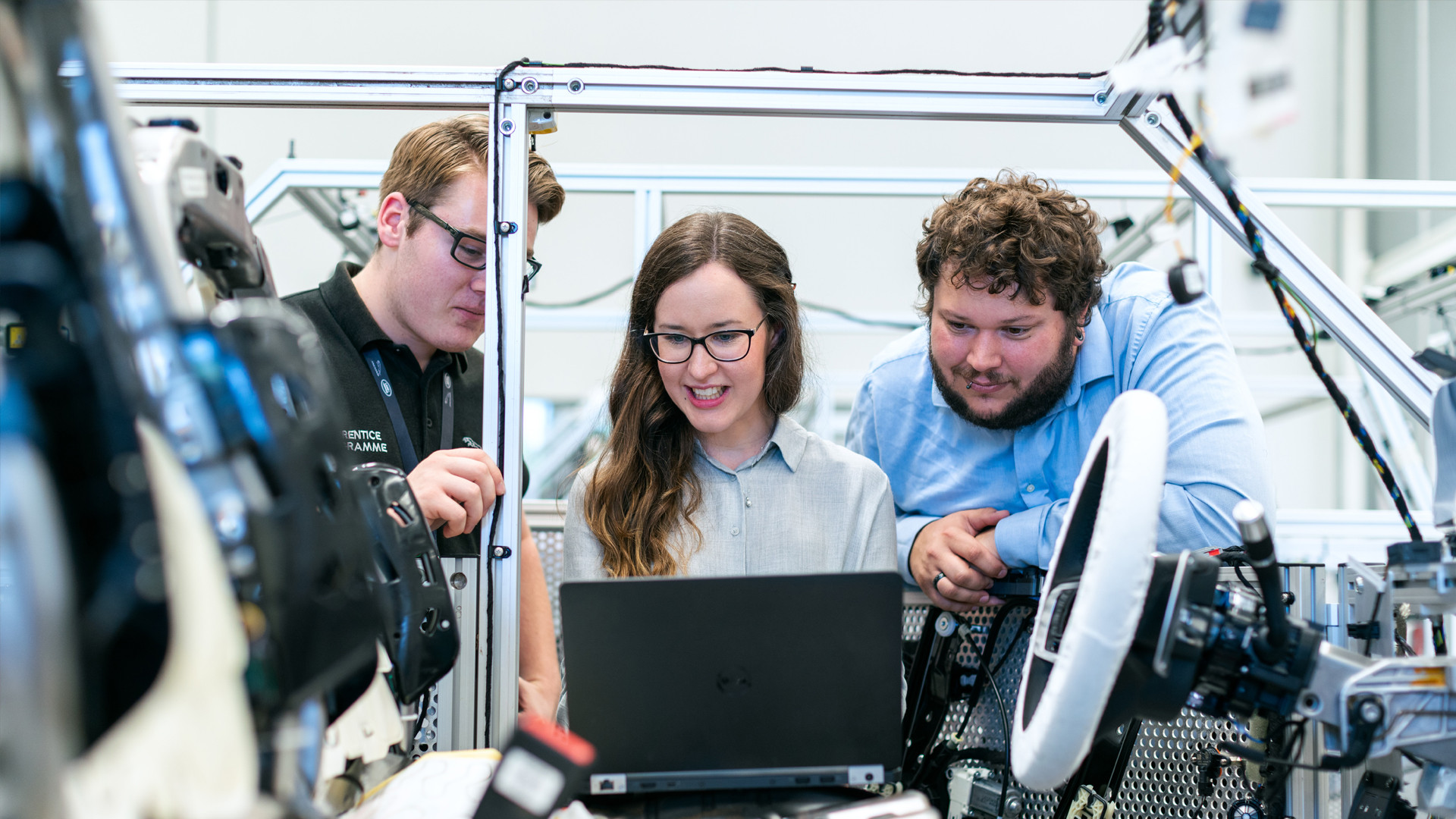
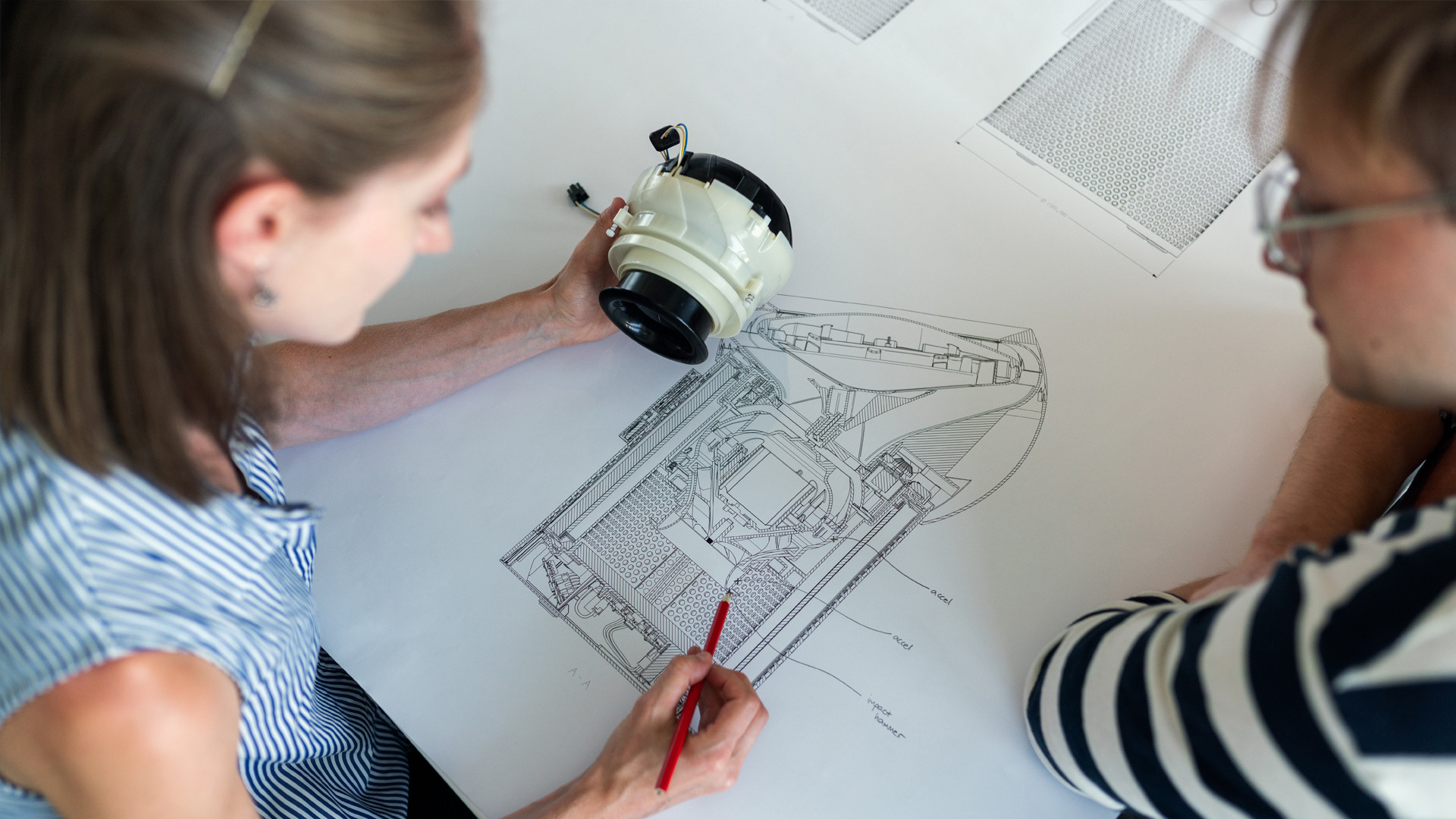
Hyson Team
A big part of showcasing Hyson’s personality is by including people in the shots. Featuring the passionate engineers and employees at Hyson developing innovative solutions, working together and with customers, highlighting technical expertise and passionate leadership. Whenever possible, Hyson team members should be in photos. It is important the photography represents diversity of age, gender, ethnicity, ability, and job position.


Products & Industries
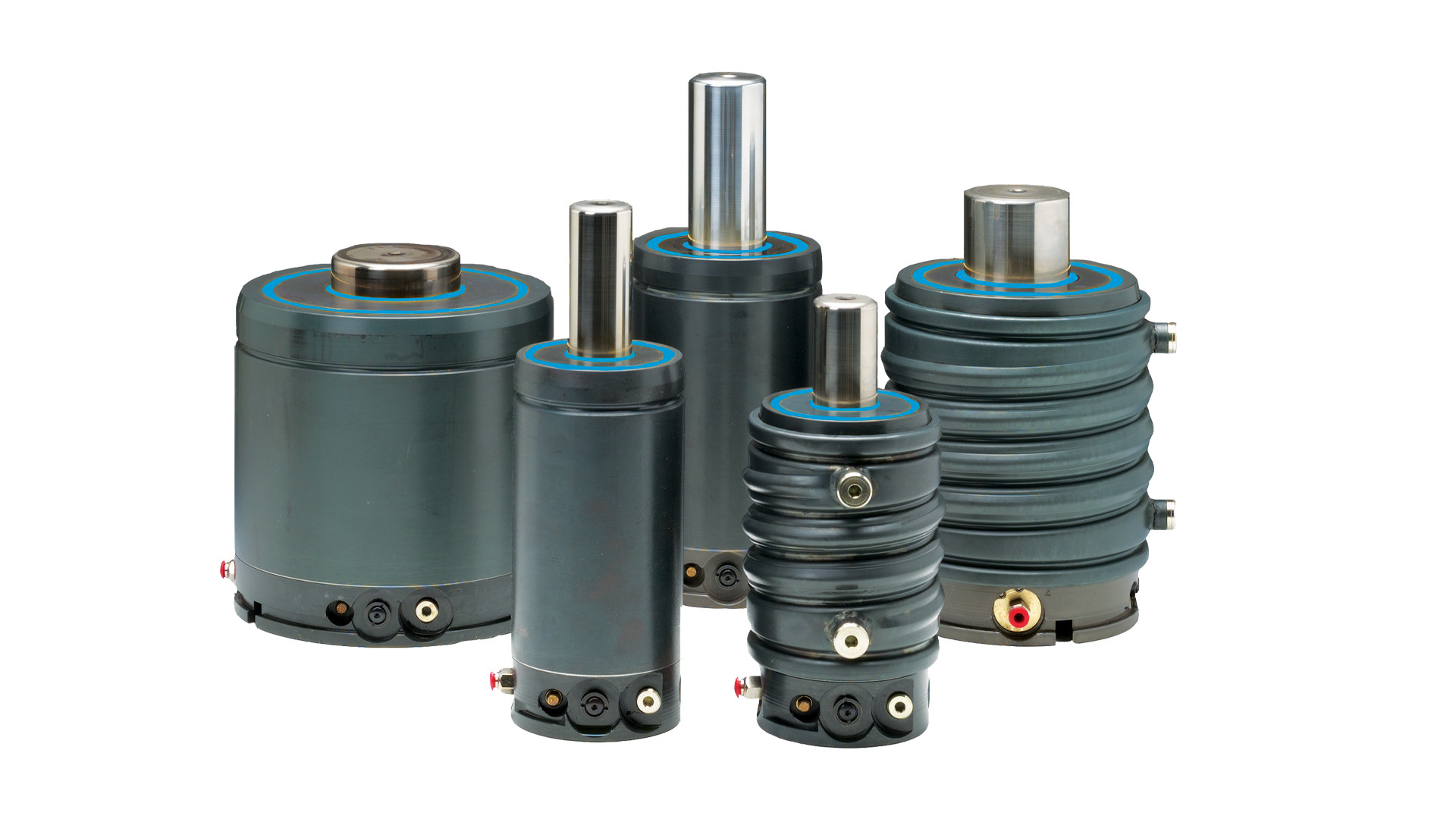
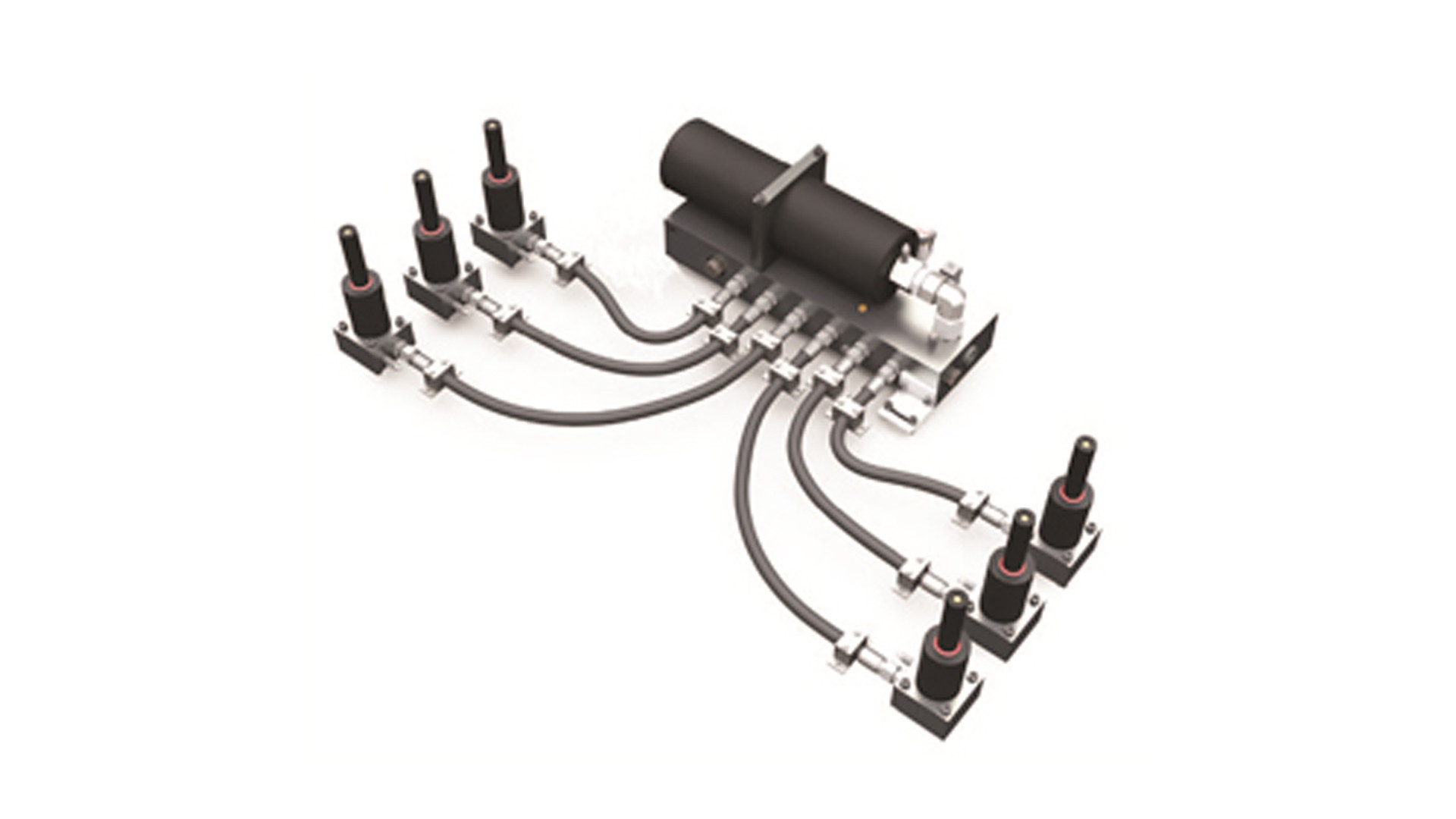
There is also a need for product photography and industry photos where it might not make sense to include people – for these instances “expertise in action” should still be at the forefront. Whenever possible, these images should be sharp and have a cutting-edge tone. For product photography, the products should be "cut out" on a white background and appear crisp and polished.


Technical Style
In addition to being conscious of the subject, the technical style of photography is also essential. The technical style recommendations are listed below, but you can see them in action in the photo examples above.
Full-color images should be true-to-life colors, without any color-changing filters or effects.
Do not desaturate a full-color image unless you are using the white or blue overlay treatment as outlined below.
If not full-color, images can use the Hyson blue or white overlay treatment outlined below.
Bright natural-feeling lighting
While images should feel bright, be sure the image temperature does not skew cold or into cooler tones. Skin tones should feel true to life and the color of the image should not skew too cool or warm. Neutral, bright, and realistic is the goal.
Simple, clean shots with lots of “white space”
Sharp, high-contrast, ultra-detailed
Overlay Images
For the Hyson blue or white overlay images, it is best to use this effect with images that include Hyson team members for a dynamic image. To create these overlays in Photoshop, follow the instructions below:
Take an image and turn it to Grayscale mode to discard the color information in the original photo.
Set the image mode back to RGB.
Adjust the brightness and contrast of the image to make the image as bright and contrasted as possible, without losing the important details of the image.
Add a white layer to the image, and lower the opacity until the image has an almost "watermark" effect, where the image is flattened to your liking (this is usually somewhere between 50%-80%).
If you're doing a white overlay image, you're job is complete. If you're creating a Hyson blue overlay, add a Hyson blue color layer and set its blending mode to "multiply." You may need to adjust the opacity of the white layer slightly to be sure enough detail is showing through and the blue isn't getting too "muddy" or muted. The more areas of bright Hyson blue, the better.